An orphaned user in SQL Server occurs when a database user is detached from its corresponding server login, preventing authentication. This typically happens after restoring or moving a database to another server instance.
Key Takeaways:
- An orphaned user exists when a database user lacks a corresponding server login or matching SID.
- Restoring database backups or migrating databases across different SQL Server instances commonly creates orphaned users.
- Orphaned users lead to broken application functionality, heightened authentication failures, and immediate connection troubleshooting needs.
- DBAs manage and fix orphaned users using updated T-SQL scripts, catalog views, and Azure SQL considerations.
Database migrations, server restorations, and environment upgrades are routine tasks for database administrators. However, a common side effect of restoring a database backup onto a new SQL Server instance is the creation of orphaned users. When a database user loses its proper mapping to a server-level login, applications break, connection errors spike, and troubleshooting becomes urgent.
This comprehensive guide details how to identify and fix orphaned users in modern SQL Server environments, incorporating up-to-date T-SQL scripts, modern catalog views, and cloud considerations for Azure SQL.
What is an orphaned user in SQL Server?
An orphaned user exists when a database-level user principal is present within a specific database, but the corresponding server-level login no longer exists—or possesses a mismatched Security Identifier (SID) - on the master instance.
This typically occurs during:
- Restoring a database backup from Server A to Server B.
- Migrating workloads across different on-premises environments or to hybrid infrastructures.
- Accidentally dropping a server login without cleaning up database users first.
Because SQL Server maps database users to server principals via their SIDs, a mismatch means authentication fails instantly when that user tries to connect.
How to Identify Orphaned Users
You can identify orphaned users in SQL Server by running a T-SQL query that compares database principals with server principals or by using the older sp_change_users_login stored procedure. An orphaned user happens when a database user account exists inside a specific database, but the matching server login is missing or has a different Security Identifier (SID) on that server instance. This often happens after you restore or attach a database to a new server.
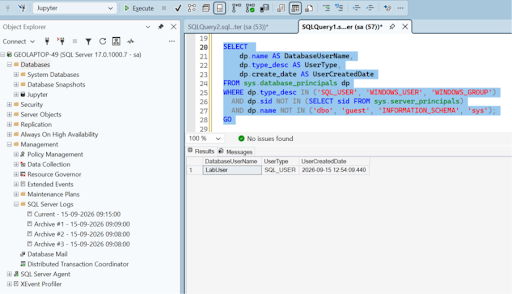
Method 1: Using System Catalog Views (Recommended)
The most reliable way to spot orphaned users in modern SQL Server versions is by querying sys. database_principals and cross-referencing it with sys. server_principals:
USE [Jupyter];
GO

SELECT
    dp.name AS DatabaseUserName,
    dp.type_desc AS UserType,
    dp.create_date AS UserCreatedDate
FROM sys.database_principals dp
WHERE dp.type_desc IN ('SQL_USER', 'WINDOWS_USER', 'WINDOWS_GROUP')
  AND dp.sid NOT IN (SELECT sid FROM sys.server_principals)
  AND dp.name NOT IN ('dbo', 'guest', 'INFORMATION_SCHEMA', 'sys');
GO
Method 2: Using the Legacy Stored Procedure
For quick troubleshooting on legacy systems, you can still use the built-in report command, though note that it is deprecated:
USE [Jupyter];
GO
EXEC sp_change_users_login 'REPORT';
GO 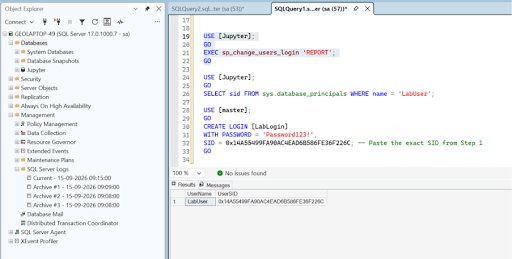
How to Fix Orphaned Users: Modern T-SQL Methods
In modern SQL Server environments, the old sp_change_users_login stored procedure is deprecated. The current, modern standard for resolving orphaned users is the ALTER USER ... WITH LOGIN syntax combined with querying the sys.database_principals and sys.server_principals catalog views.
Method 1: The Modern Standard (ALTER USER)
Rather than relying on older stored procedures, modern SQL Server editions favor the cleaner ALTER USER syntax to map an existing database user to an existing server login:
USE [Jupyter];
GO

ALTER USER [LabUser] WITH LOGIN = [LabLogin];
GO 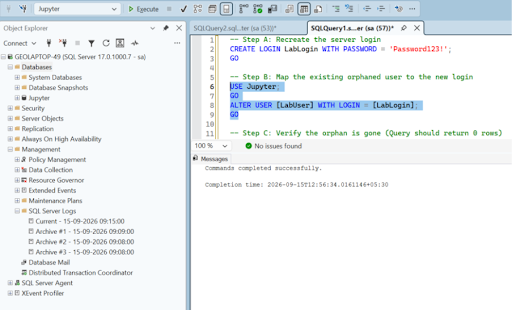
Method 2: Creating a Login with the Orphaned SID
If you need to preserve the exact security permissions and SID of the user from the source server, you can extract the SID from the orphaned user and recreate the login using that exact identifier:
-- Step 1: Find the SID of the orphaned user in your target database
USE [Jupyter];
GO
SELECT sid FROM sys.database_principals WHERE name = 'LabUser';
-- Step 2: Create the login on the master level using that SID with a temporary password
USE [master];
GO
CREATE LOGIN [LabLogin]
WITH PASSWORD = 'Password123!',
SID = 0x14A55499FA90AC4EAD6B586FE36F226C; -- Paste the exact SID from Step 1
GO 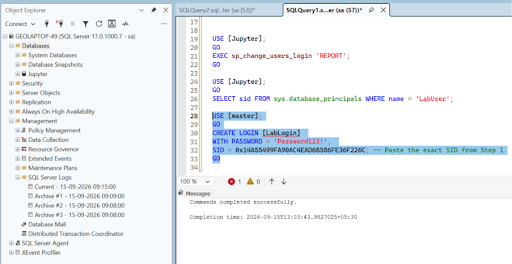
Method 3: Using sp_change_users_login (UPDATE_ONE)
If you prefer using the classic stored procedure approach to link an orphaned user to a newly created login name, use the UPDATE_ONE option:
-- First, ensure the login exists
USE [master];
GO
CREATE LOGIN [LabLogin] WITH PASSWORD = 'YourStrongPassword#2026';
GO 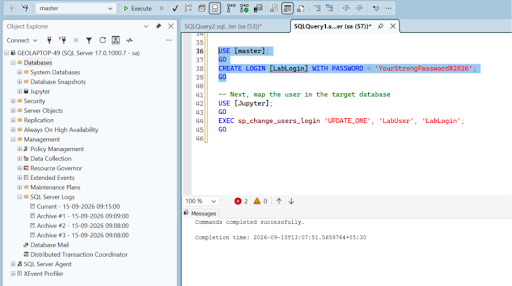
-- Next, map the user in the target database
USE [Jupyter];
GO
EXEC sp_change_users_login 'UPDATE_ONE', 'UserName', 'LoginName';
GO 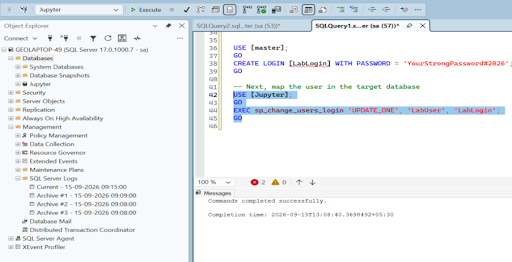
Special Consideration: Azure SQL Database
If you are working with Azure SQL Database or Azure SQL Managed Instance, keep in mind that server-level logins are handled differently, and older procedures like sp_change_users_login are not supported. In Azure SQL Database:
- Authentication heavily relies on Microsoft Entra ID (formerly Azure Active Directory) or contained database users.
- If you encounter orphaned users after restoring a database to Azure, you must drop the user and recreate it as a contained user, or map it using standard T-SQL user creation commands tied to server principals where applicable.
Conclusion
Managing orphaned users is a routine yet critical part of database administration and migration checklists. By moving away from deprecated scripts and adopting modern catalog views alongside ALTER USER syntax, DBAs can keep their environments secure, clean, and fully compliant.
Ready to streamline your database management? Read the full guide on Geopits to learn how to identify, prevent, and fix orphaned users in SQL Server using modern T-SQL practices. Need hands-on support? Contact a Geopits Expert Today to optimize your SQL Server environment.
References
Troubleshoot Orphaned Users - SQL Server Always On | Microsoft Learn
sys.server_principals (Transact-SQL) - SQL Server | Microsoft Learn
FAQ
1. How to fix orphaned users in SQL?
Remap the user to an existing login using ALTER USER [UserName] WITH LOGIN = [LoginName]. Alternatively, you can recreate the server login using the exact same Security Identifier (SID) or use Azure contained database users.
2. How can I check for orphaned users in SQL Server?
Query sys.database_principals and cross-reference with sys.server_principals to find database users whose SIDs do not match any server logins. Alternatively, execute the legacy stored procedure sp_change_users_login 'REPORT.'
3. How to fix the deadlock issue in SQL Server?
Identify deadlocking queries using extended events or SQL Profiler, then optimize indexes, minimize transaction times, enforce consistent object access order across queries, and use appropriate isolation levels like Read Committed Snapshot (RCSI).
4. How do I remove a user from an SQL Server database?
Ensure the user owns no database schemas or objects, then execute DROP USER [UserName] within the specific target database context. You can also delete the user through SQL Server Management Studio (SSMS) Object Explorer.
5. What is the method of handling deadlocks?
SQL Server automatically detects deadlocks and terminates the session with the lowest cost, rolling back its transaction as a "deadlock victim." Applications should implement retry logic to handle these transient errors gracefully.
If you found this article helpful, you might want to check out these related resources,